Cancel an iPhone Subscription: What Apple’s Retention Offers Mean
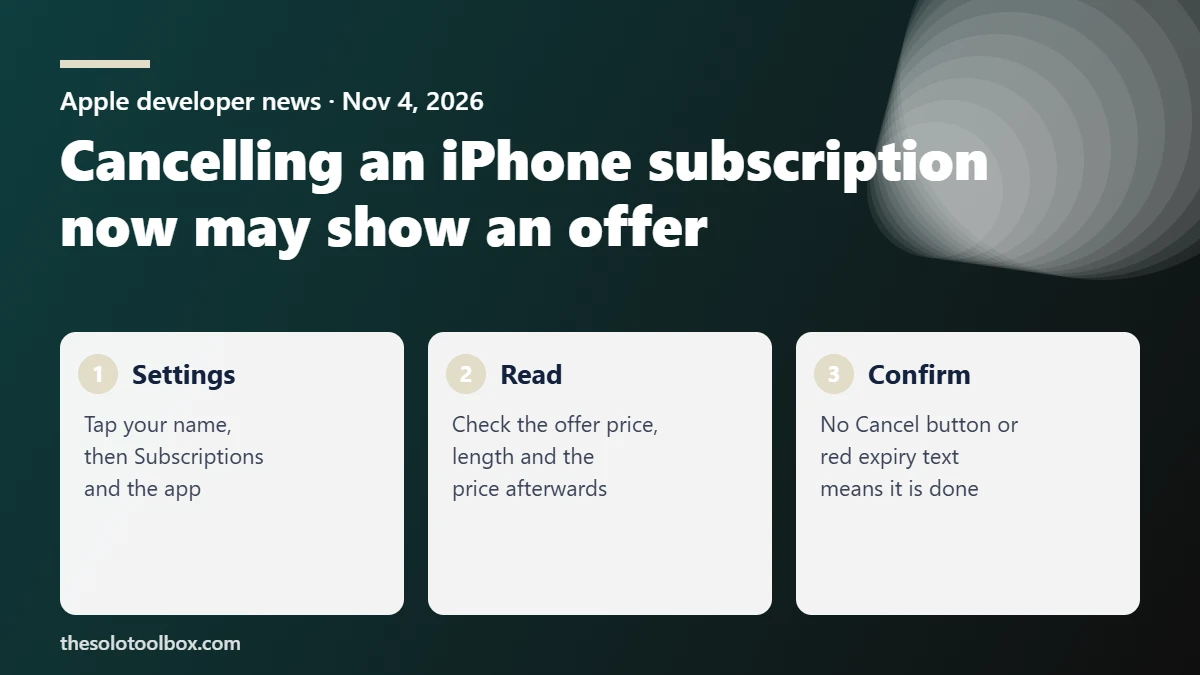
Starting November 4, 2026, iPhone apps can show you a “retention message” when you try to cancel an App Store subscription: a short pitch, an image or a special offer such as a discount or free period. You can still cancel the usual way: open Settings, tap your name, tap Subscriptions, pick the app and tap Cancel Subscription. If an offer appears, accepting it keeps the subscription running at the offer price. Skipping it lets you carry on cancelling.
Here is what Apple changed, what the offers can and can’t contain, how to cancel on each device, and how to check that the cancellation went through.
Before you start
- Who this is for: anyone who pays for apps through the App Store on iPhone, iPad, Mac, Windows or Android.
- What you need: the Apple Account the subscription was bought with.
- Good to know: this only covers subscriptions billed by Apple. One you bought on a company’s website is cancelled with that company.
What Apple changed
Apple announced the feature to developers on November 4 in a news post titled “Now available: Retention messages for subscriptions”. Apple says the messages appear in the cancellation flow and “can include text, images, or a special offer.” Developers set them up in App Store Connect for auto-renewable subscriptions, and a separate Retention Messaging API, available on request, lets an app pick which message each subscriber sees.
Apple’s App Store Connect help page describes three formats:
| Message type | What you see | When it appears |
|---|---|---|
| Text only | A header and short body text | The app set no image or offer |
| Text and image | Text plus a picture | No offer is attached, or you don’t qualify for it |
| Text and retention offer | Text plus a discount or free period | You meet the app’s eligibility rules for the offer |
Rules apps have to follow
- No prices in the pitch. The header and body text can’t mention offers or prices, and App Review rejects messages that do. Any price shows up in the offer itself.
- One message per subscription. Each subscription can carry only one retention message at a time, and an app can create up to 10.
- Offer types. Offers give “a discount or a free period”, set up as pay as you go, pay up front, or free.
- Eligibility. Developers can require a minimum paid subscription length before you qualify, and set a wait before you can redeem the same offer again.
- Apple reviews them. Messages go through App Review before subscribers see them.
Apple’s pages don’t say how often you’ll see a message or describe what happens screen by screen after you tap an offer. We’ll update this guide once the flow is widely visible.
How to cancel an App Store subscription
These steps come from Apple’s support page “Cancel a subscription from Apple”.
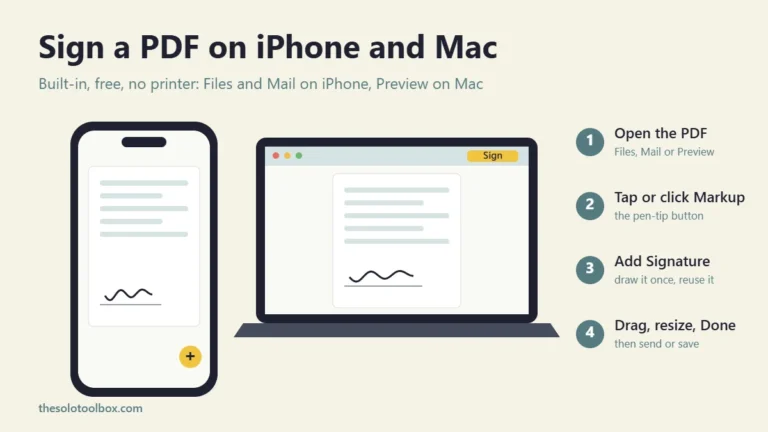
iPhone or iPad
- Open Settings and tap your name.
- Tap Subscriptions.
- Tap the subscription you want to end.
- Tap Cancel Subscription. You may need to scroll down to find it.
If a retention message appears at this point, read what the offer is and how long it lasts. Decline it if you still want to cancel.
Mac
- Open the App Store and click your name at the bottom of the sidebar (or click Sign In first).
- Click your name again on the page that opens.
- Click Subscriptions, then the subscription.
- Click Cancel Subscription.
Windows, Android or any browser
On Windows, open the Apple Music or Apple TV app, click your name, choose View My Account, click Manage next to Subscriptions, then Edit and Cancel Subscription. On Android or any other device, sign in at account.apple.com and open the subscriptions section.
Should you take the offer?
Treat it like any discount. Before you tap accept, check three things on the offer screen: the price, how long it lasts, and what the subscription costs afterwards. Under Apple’s offer types, a discount or free period runs for a set time, and then the subscription renews at its normal price unless you cancel again. Put a reminder in your calendar a few days before the offer ends.
If you’re cancelling because you no longer use the app, a cheaper month doesn’t change that. If price was the only problem, a discounted year can be a fair deal.
How to check that it worked
Go back to Settings → [your name] → Subscriptions and tap the app. Apple says that if there’s no Cancel button, or you see an expiration message in red text, the subscription is already cancelled. If the Cancel button is still there, the cancellation didn’t go through, possibly because you accepted an offer by mistake.
For other Apple changes this month, see our notes on what’s new in the iOS 27.3 beta and on the iCloud “Anyone with the link” change.
FAQ
Can an app stop me from cancelling now?
Apple’s announcement describes a message shown in the cancellation flow, not a block. Its support page still lists Cancel Subscription as the final step on every device.
Do I need iOS 27.3 to see retention messages?
Apple hasn’t named a minimum iOS version for this feature in its announcement or developer help.
Why don’t I see my subscription in the list?
It may be billed to another Apple Account, or bought outside the App Store, for example on the company’s website or through your phone carrier. Cancel those with whoever bills you.
Sources
How we checked: on November 5, 2026 we read Apple’s November 4 developer news post, the App Store Connect help page on configuring retention messages, and Apple Support’s cancellation guide (published September 29, 2026) for the menu labels. MacTech’s November 5 report confirmed the timing. We have not yet seen a retention message on our own devices, so the screen layout is not described here.
- Apple Developer: Now available: Retention messages for subscriptions (Nov 4, 2026)
- Apple Developer: Configure retention messages in App Store Connect
- Apple Support: Cancel a subscription from Apple
- MacTech: Apple adds a new subscription retention feature for developers (Nov 5, 2026)
Next step: open Settings → [your name] → Subscriptions now and review every active subscription. Cancel the ones you don’t use before the next renewal date.