iPhone SynthID watermark: how to check if a photo was AI-edited
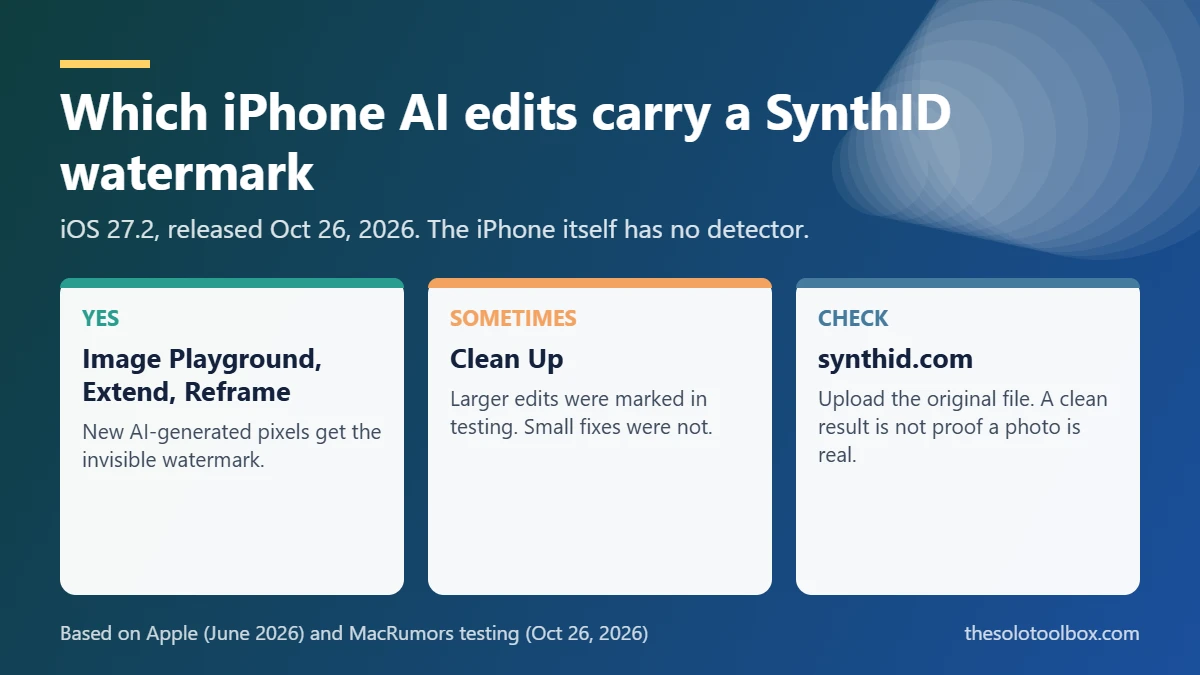
Since iOS 27.2, released October 26, 2026, images made in Image Playground and photos changed with larger Apple Intelligence edits carry an invisible SynthID watermark. Your iPhone can’t detect it: there is no setting or label for it in Photos. To check a file, upload the original to Google’s SynthID Detector at synthid.com, but don’t treat a “no watermark” result for an iPhone image as proof it’s real, because Google hasn’t confirmed its tools read Apple’s watermark yet.
This guide covers which iPhone edits are watermarked, how to run a check, what the results mean and the metadata label you can look at instead. It was checked on October 27, 2026 against Apple’s June announcement, Google DeepMind’s October 7 post, Gemini’s help page and MacRumors’ testing. We could not run detector tests on iOS 27.2 images ourselves.
Before you start
- You’ll need: The original image file (not a screenshot or a messaging-app copy) and a web browser
- Time: About 2 minutes per image
- Watch out: Uploading sends the image to Google. Don’t check private photos you wouldn’t want processed there
What changed in iOS 27.2
Apple said in June 2026 that Apple Intelligence edits in Photos would get “a hidden SynthID watermark,” and that Image Playground images would carry the same marker. That arrived with iOS 27.2. SynthID is Google’s watermarking system: it hides a signal in the image pixels rather than in metadata, and Google says it’s designed to survive cropping, filters and compression.
Google says SynthID has been applied to more than 180 billion images and videos. OpenAI, NVIDIA and Kakao also use it, which is why one detector can check images from several companies.
Which iPhone edits get a watermark
| Feature | Watermarked? | Basis |
|---|---|---|
| Image Playground (new images) | Yes | Apple announcement; MacRumors testing |
| Extend in Photos | Yes | MacRumors testing |
| Spatial Reframing in Photos | Yes | MacRumors testing |
| Clean Up in Photos | Only larger edits; small fixes had none | MacRumors testing |
| Crop, exposure, filters, Portrait edits | Not described as watermarked | These don’t generate new pixels with AI |
| Genmoji | Not covered | Neither Apple nor MacRumors addressed it |
Apple hasn’t published the size threshold for Clean Up, so a lightly retouched photo may come back clean even though AI touched it.
How to check a photo with SynthID Detector
- Get the original file. Screenshots and copies sent through messaging apps are recompressed, which can weaken the watermark. On iPhone, check the photo straight from your Photos library.
- Open synthid.com in Safari or any browser. Google opened the detector to everyone on October 7, 2026, in English.
- Upload the image. The detector accepts images, video and audio. Third-party reports put the limit at about 10 checks a day.
- Read the result, using the table in the next section.
The catch: Google’s October 7 post listed Apple as “coming soon” among SynthID partners, and the Gemini help page says Gemini “can currently only recognize content created by Google AI tools.” MacRumors points readers to the detector for iPhone images, but we couldn’t confirm from Google or Apple that Apple’s watermark is readable today. Test with an image you know came from Image Playground first; if it isn’t flagged, that’s a strong sign the detector doesn’t read Apple’s watermark yet.
Checking with Gemini instead
At gemini.google.com, select the add-files button, choose Upload Files and ask “Is this AI-generated?” Gemini checks for SynthID and Content Credentials. Per Google, it recognizes Google AI content only, so it’s useful for images that may come from Gemini or Google’s image models, not for confirming iPhone edits. The limit is about 10 image checks in a rolling 24 hours, one image at a time, up to 100 MB.
Check the metadata label for Clean Up
Apple also writes edit information into a photo’s metadata. Since iOS 18.1, photos edited with Clean Up are tagged “Modified with Clean Up,” according to AppleInsider. Open the photo in Photos and tap the info (i) button to see the details Photos shows.
Metadata is easy to lose. Screenshots, many social apps and some export settings strip it, so a missing label tells you nothing. The SynthID watermark exists because metadata isn’t reliable.
What a detector result means
| Result | What it means | What it doesn’t mean |
|---|---|---|
| Watermark detected | AI from a supported company created or edited all or part of the file | How much was changed. A small fill and a fully generated image can look the same |
| No watermark found | No supported watermark was read | That the image is real. Other AI tools, heavy edits and recompression leave no readable mark |
| Inconclusive | The signal was too weak to call | Anything either way. Try the original file |
Google advises treating a result as one clue among several. For images tied to news or elections, check where the image first appeared and whether reputable outlets carry it. The same skepticism applies to stores and marketplaces, as in our guide to spotting AI-generated games on Steam.
Can you turn the watermark off?
Apple hasn’t documented any setting to turn SynthID off for Image Playground or Photos edits. If you don’t want a watermark, the only route is not using the AI editing tools. The watermark is invisible and Google says it doesn’t affect image quality.
If you haven’t installed the update yet, our iOS 27.2 overview covers the other changes, and iOS 26.7.2 vs iOS 27.2 helps you decide whether to stay on iOS 26.
FAQ
Does the iPhone have a SynthID detector?
No. iOS 27.2 adds the watermark but no way to read it. MacRumors confirmed there’s no detection option on the iPhone.
Do ordinary iPhone photos get a watermark?
No. Based on Apple’s description, the watermark is applied to AI-generated images and AI edits, not to photos straight from the Camera app.
Does the watermark survive screenshots?
Google says SynthID is built to survive cropping, filters and compression, but heavy editing, screenshots and reposts can weaken it. Always test the original when you can.
Can other people see the watermark?
No. It’s invisible to the eye. Anyone with your image can upload it to a detector, though.
What to do next
Generate one test image in Image Playground and upload it to synthid.com. If it’s flagged, you know the detector reads Apple’s watermark and you can rely on it for other iPhone images.
Sources
- Apple Newsroom: Apple Intelligence brings powerful AI capabilities into everyday experiences (June 2026)
- MacRumors: iPhone AI images and edits now have a hidden watermark (Oct 26, 2026)
- Google: SynthID Detector expansion (Oct 7, 2026)
- Gemini Apps Help: Verify AI-generated images, videos and audio
- AppleInsider: How to use Clean Up in iOS 18 Photos
- SynthID Detector