Chrome ClickFix Protection: How to Turn It On and What It Sends

Chrome’s ClickFix protection is a new Enhanced Protection feature that checks commands you copy from a web page and warns you before you paste and run a dangerous one. Google announced it on October 20, 2026, alongside a new, lower-level “suspicious site” warning. Both work only when Chrome’s Safe Browsing is set to Enhanced protection, so the main thing to do is check that setting.
This guide shows how to turn Enhanced protection on for desktop and Android, what a ClickFix scam looks like, what Chrome sends to Google when it checks your clipboard, and how the new warnings differ from the red full-page screen.
Before you start
- You’ll need: Chrome on Windows, macOS, Linux, ChromeOS or Android, updated to the latest version (open Settings > About Chrome to update)
- Time: About two minutes
- Before you change anything: Decide whether you’re comfortable with Chrome sending page samples and suspicious copied commands to Google Safe Browsing (details below)
What’s new in Chrome Enhanced Protection
Google’s Chrome team listed three changes in its October 20 post, “Our latest defenses against evolving web scams”:
- ClickFix protection. When you copy something that looks like a system command, Chrome strips personal information from it, sends it to Safe Browsing for a verdict, and shows a warning if the verdict is dangerous.
- Suspicious site warnings. A second, lower tier of warning for pages Google is less sure about. It looks different from the red “Dangerous site” interstitial, which stays for high-confidence threats.
- Server-side Gemini scam checks. The tech-support-scam detector Google ran on-device last year now uses a larger Gemini model on Google’s servers. It looks at a page’s claimed brand, intent and scam likelihood, and is aimed at fake antivirus and fake browser-update pages.
Google also says Enhanced Protection users are “ten times safer” than Standard Protection users. Its own footnote says that number compares the average count of warnings shown to each group, so it measures warnings, not infections avoided.
How to turn on Enhanced protection in Chrome
On a computer
- Open Chrome and select the three-dot More menu at the top right.
- Select Settings.
- On the left, select Privacy and security, then Security.
- Under Safe Browsing, select Enhanced protection.
You can also paste chrome://settings/security into the address bar to jump straight to that page.
On Android
- Open Chrome and tap More (three dots), then Settings.
- Tap Privacy and security, then Safe Browsing.
- Select Enhanced protection.
Google’s help page doesn’t give iPhone and iPad steps for this setting, and its post doesn’t say whether ClickFix protection runs on iOS. ClickFix scams target desktop systems in any case, because they rely on you opening a Run box or Terminal.
Optional: turn it on for your Google Account
If you’re signed in, Google also offers Enhanced Safe Browsing for your Google Account, which carries the same protection to other Google services such as Gmail. With it on, the browsing data Chrome sends to Safe Browsing is saved to your account, so treat this as a separate privacy decision.
What a ClickFix scam looks like
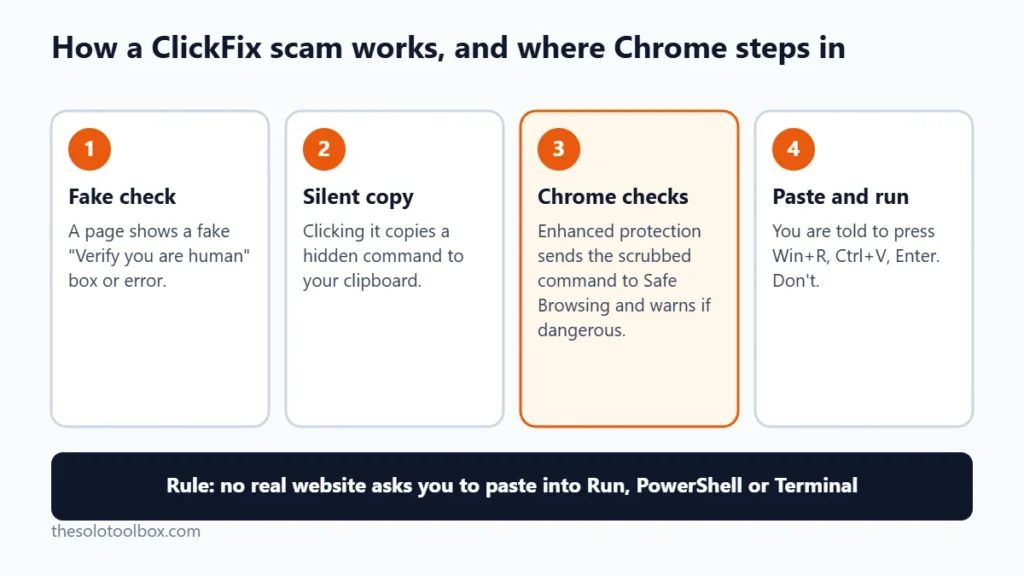
ClickFix pages pretend something needs fixing or verifying, then make you run the attack yourself. The most common version is a fake “Verify you are human” CAPTCHA. Clicking the checkbox silently copies a command to your clipboard, and the page then shows instructions like these:
- Press Windows key + R (or open Terminal on a Mac).
- Press Ctrl + V to paste.
- Press Enter.
The pasted text is usually a PowerShell or shell command that downloads malware, often an information stealer that grabs saved passwords and browser sessions. Other versions show a fake browser error, a fake Teams or Zoom “fix your microphone” prompt, or a fake document viewer. York University’s security team has a plain-language write-up of the pattern.
Here’s the rule that beats every version: no real CAPTCHA, website or meeting app will ever ask you to paste something into Run, PowerShell or Terminal. If you see that request, close the tab.
What Chrome sends to Google when it checks your clipboard
This is the part that drew criticism after the announcement. Here’s what Google has said, and what it hasn’t:
| What’s sent | When | What Google says it does with it |
|---|---|---|
| Copied text that looks like a suspicious command | Only when Chrome flags the copy as a possible ClickFix command | Personal information is removed first; analyzed by Safe Browsing |
| Page text for Gemini scam analysis | Only on pages showing high-confidence scam signs | Processed ephemerally; not logged, kept or used to train models |
| URLs you visit, a small sample of page content, extension activity, system info | Always, with Enhanced protection on | Used only for security purposes, per Google’s help page |
Google hasn’t said exactly how it detects a “suspicious command” on your device, what counts as personal information when it scrubs the clipboard, or whether the clipboard check can be turned off on its own. As of October 21, the only documented way to stop it is to switch Safe Browsing back to Standard protection, which also turns off the new suspicious-site warnings.
Ordinary copying isn’t affected, according to Google: the system is designed for high precision so that developers who copy commands all day aren’t buried in warnings. Copying text from an article, a password manager or a spreadsheet shouldn’t trigger it.
Suspicious vs. dangerous: what the new warnings mean
- Dangerous site (unchanged): the full-page red warning. Google is highly confident the page is phishing, malware or a scam. Go back.
- Suspicious site (new): a warning with its own icon, color and wording. Google sees some risk but is less certain. Don’t sign in, pay, download anything or follow “fix” instructions until you’ve checked the address yourself.
A quick way to check a suspicious page is to type the company’s address yourself in a new tab rather than following the link you were sent. Scam texts are a common way in: our guide to fake package delivery texts covers that route, and how to stop fake calendar invites covers another.
If you already ran a pasted command
- Disconnect the computer from the internet.
- Run a full scan with Microsoft Defender (Windows Security > Virus & threat protection > Scan options > Full scan) or your security app.
- From a different, clean device, change the passwords for your email, bank and any account saved in the browser, starting with email.
- Sign out of all sessions on those accounts (Google, Microsoft and most banks have a “sign out everywhere” option) so stolen session cookies stop working.
- Turn on two-step verification wherever it’s off.
If the PC holds business or client data, treat it as compromised until it has been checked or reset. Information stealers can take saved passwords in seconds, so a clean scan afterward doesn’t mean nothing was taken.
FAQ
Is ClickFix protection on by default?
Only if you already use Enhanced protection. Chrome’s default Safe Browsing level is Standard protection, which doesn’t include the new features.
Does Chrome read everything I copy?
Google says Chrome sends clipboard content only when it detects a possible suspicious command, and removes personal information first. It hasn’t published the detection rules, so that claim can’t be checked independently.
Can I keep Enhanced protection but turn off the clipboard check?
Google hasn’t documented a separate switch as of October 21, 2026. Switching to Standard protection turns off the whole Enhanced feature set.
Do other browsers have this?
This specific feature is Chrome’s. Chromium-based browsers such as Edge use their own protection systems (Microsoft Defender SmartScreen in Edge’s case), and the announcement doesn’t cover them.
Next step
Open chrome://settings/security now and confirm which Safe Browsing level you’re on. If you switch to Enhanced protection, do the same on every computer you use for work, since ClickFix pages target desktops.
Related guides
Sources
Facts checked on October 21, 2026. Google hasn’t published a rollout schedule or platform list for the new features, so some users may not see them yet.
- Google: Our latest defenses against evolving web scams (October 20, 2026)
- Google Chrome Help: Choose your Safe Browsing protection level
- Google Account Help: Enhanced Safe Browsing for your account
- Android Authority: Chrome can now share your clipboard data with Google servers (October 20, 2026)
- York University Information Security: Fake CAPTCHA, real threat