Smart App Control grayed out after KB5127648: how to fix
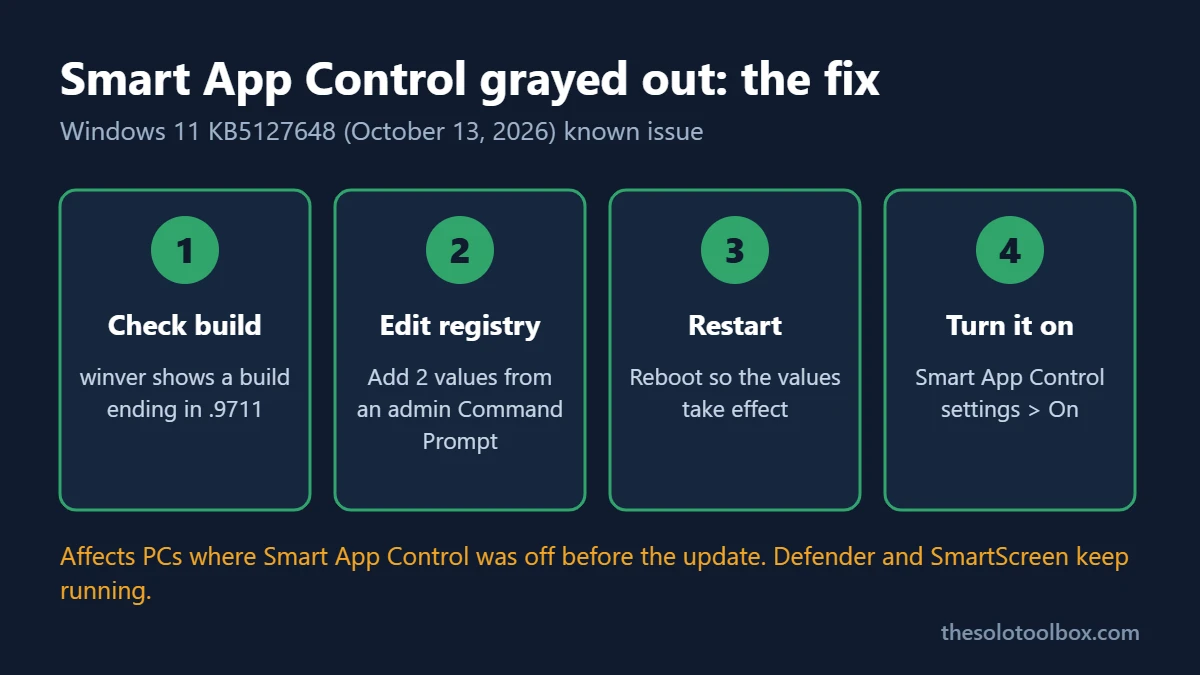
If Smart App Control is grayed out and you can’t turn it back on, the October 13, 2026 Windows 11 update (KB5127648) is the likely cause. Microsoft lists it as a known issue on PCs where Smart App Control was off when the update installed. The fix for now is two registry values and a restart; Microsoft promises a permanent fix in a future update but hasn’t set a date. The October 26 out-of-band update, KB5134133, doesn’t fix it either; Microsoft lists the same known issue there.
Below: how to confirm the bug hits your PC, apply Microsoft’s workaround step by step, and what to do on Windows 11 24H2 Home or Pro, which won’t get the permanent fix.
Before you start
- You’ll need: an administrator account on the PC.
- Time: about 10 minutes, including a restart.
- Applies to: Windows 11 versions 24H2, 25H2 and 26H2 with KB5127648 (builds ending .9711) or the October 26 out-of-band update KB5134133 (builds ending .9725).
- Not affected: PCs where Smart App Control was already on. Microsoft says the bug doesn’t touch those devices and they stay protected.
Why Smart App Control is grayed out after KB5127648
Smart App Control blocks apps that Microsoft’s cloud service predicts are malicious, and blocks unsigned apps when the service can’t decide. For years it was one-way: once it was off, the only way back was to reset or reinstall Windows. According to reports, the April 2026 cumulative update removed that limit, so you could switch it on from its settings page at any time. Microsoft’s general help page still describes the older rule.
KB5127648 broke the new behavior. On PCs where Smart App Control was off, the On option in Windows Security is now grayed out. BleepingComputer reported the known issue on October 16, 2026, along with Microsoft’s registry and Group Policy workarounds.
Check whether this bug is why Smart App Control is grayed out
- Press Windows + R, type winver and press Enter. A build ending in .9711 (for example 26100.9711) means you have KB5127648, and .9725 means you have KB5134133, which carries the same bug.
- Or open Settings > Windows Update > Update history and look for KB5127648.
- Click Start, type Smart App Control and open the settings result (it’s under Windows Security > App & browser control > Smart App Control settings).
- If On is grayed out while the setting shows Off, you’re hitting this bug.
| What you see | What it means | What to do |
|---|---|---|
| Smart App Control is On | Not affected | Nothing |
| Off, and On is grayed out, build .9711 or .9725 | The KB5127648 bug | Use the registry workaround below |
| Off, grayed out, “managed by your organization” | Your employer controls it | Ask your IT team |
| Off, grayed out, build older than .9711 | A different cause, such as developer mode or optional diagnostic data turned off | Check those settings first |
Fix: the registry workaround
Microsoft published this per-device workaround. It adds two feature-override values and doesn’t remove the update.
- Create a restore point: click Start, type Create a restore point, open it, click Create and name it.
- Click Start, type cmd, right-click Command Prompt and choose Run as administrator.
- Paste the first command and press Enter. You should see “The operation completed successfully.”
- Paste the second command and press Enter.
- Restart the PC.
- Open Smart App Control settings again and select On.
reg add "HKLM\SYSTEM\CurrentControlSet\Policies\Microsoft\FeatureManagement\Overrides" /v 2883193997 /t REG_DWORD /d 1 /f
reg add "HKLM\SYSTEM\CurrentControlSet\Policies\Microsoft\FeatureManagement\Overrides" /v 2850574478 /t REG_DWORD /d 1 /f
To confirm both values are there, run:
reg query "HKLM\SYSTEM\CurrentControlSet\Policies\Microsoft\FeatureManagement\Overrides"If you’d rather use Registry Editor, create the FeatureManagement and Overrides keys under HKEY_LOCAL_MACHINE\SYSTEM\CurrentControlSet\Policies\Microsoft if they don’t exist, add two DWORD (32-bit) Value entries named 2883193997 and 2850574478, set each to 1, and restart.
For IT admins: Group Policy
Microsoft also published two Feature Preview packages tied to KB5074105, named 261015_19222 Feature Preview and 261015_19221 Feature Preview. Install both, set the two new policies under Computer Configuration > Administrative Templates to Enabled, and restart. One restores the Smart App Control option; the other turns on extra logging. Download links are on the KB5127648 page.
What not to do
- Don’t uninstall KB5127648. It’s the October security update; removing it to get one toggle back trades many fixes for one feature.
- Don’t reset the PC. The old advice to “Reset this PC” predates the April 2026 change and won’t help with this bug.
- Don’t turn off Microsoft Defender or SmartScreen while troubleshooting. They keep running regardless of Smart App Control.
Windows 11 24H2 Home and Pro: no permanent fix coming
Microsoft says the October 2026 update was the last monthly security update for Windows 11 24H2 Home and Pro, so the eventual fix won’t reach those editions. Use the registry workaround, then plan the move to 25H2. Our guide on Windows 11 24H2 reaching end of updates explains how to check your version and upgrade.
FAQ
Is my PC exposed while Smart App Control is grayed out?
No. Microsoft Defender Antivirus and SmartScreen still check downloads and apps. Smart App Control adds a stricter layer that blocks untrusted and unsigned apps before they run.
Why was Smart App Control off in the first place?
It starts in evaluation mode and can switch itself off if Windows decides your PC isn’t a good fit, for example because of developer tools or some business software. Many people never turned it off themselves.
When will Microsoft fix it properly?
Microsoft says it will provide a fix “in an upcoming release” but hasn’t given a date, and the October 26 out-of-band update didn’t include it. The next regular Patch Tuesday is November 10, 2026.
Will the registry values cause problems later?
Microsoft hasn’t said whether to remove them after the fix ships. If you want to undo the workaround, delete the two values with reg delete using the same path and value names, then restart.
How we checked: we compared the symptoms and both workarounds with the known-issue notes on Microsoft’s KB5127648 and KB5134133 pages on October 27, 2026, and used BleepingComputer’s October 16 report and Windows Digitals for background on the April 2026 change. We didn’t test the workaround on an affected PC.
Related guides
Sources
- BleepingComputer: October Windows update may break Smart App Control (Oct 16, 2026)
- Microsoft: KB5127648 security update for Windows 11 24H2, 25H2 and 26H2 (Oct 13, 2026)
- Microsoft Support: What is Smart App Control?
- Windows Digitals: Smart App Control grayed out after KB5127648
- iTechify: Smart App Control grayed out after KB5127648 (Oct 18, 2026)
Next step: run winver to check your build, and if it ends in .9711 with the toggle grayed out, apply the two registry values. While you’re in Settings, make sure Windows doesn’t restart mid-workday with our guide to stopping Windows 11 update restarts.