AOMEI Backupper malware: how to check if your PC was hit
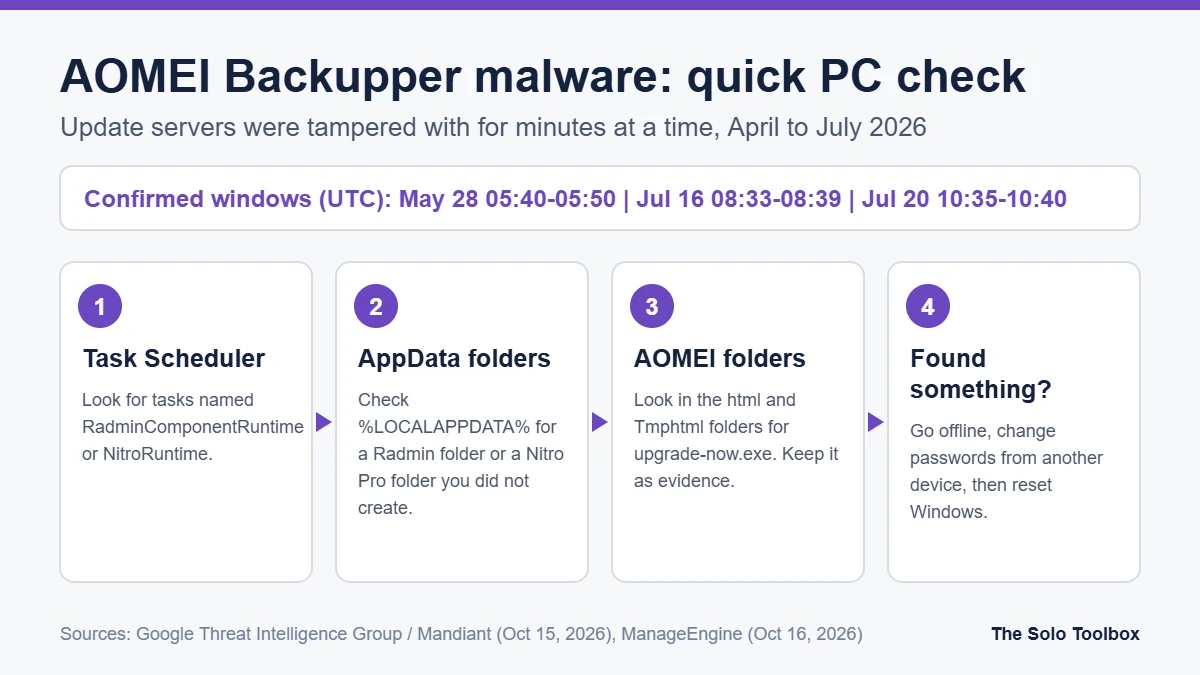
If you use AOMEI Backupper or AOMEI AnyViewer on Windows, check your PC for two scheduled tasks, RadminComponentRuntime and NitroRuntime, and for a Radmin folder in your AppData that you didn’t create. Google’s Threat Intelligence Group and Mandiant reported on October 15, 2026 that attackers repeatedly altered AOMEI’s update servers between April and July 2026, so copies that checked for updates at the wrong moment installed a backdoor. AOMEI says it has secured its servers, but that doesn’t clean PCs that were already infected. This guide covers the 10-minute check, what to do if you find something, and whether to keep using the software.
Before you start
- You’ll need: a Windows PC with AOMEI Backupper or AnyViewer installed (now or at any point since April 2026) and an administrator account.
- Applies to: AOMEI Backupper (researchers examined version 8.3.0 and later) and AnyViewer. Other AOMEI products weren’t named in the reports.
- Time: about 10 minutes.
- Heads-up: a clean result from VirusTotal or a fresh download from AOMEI’s site proves nothing here, because the tampered files were swapped back within minutes.
What happened
Google Threat Intelligence Group (GTIG) and Mandiant published their investigation on October 15, 2026. ManageEngine’s Threat Analysis Lab, which first caught the activity, published its own report on October 16, and BleepingComputer covered it on October 19. GTIG tracks the attacker as UNC7017.
The attackers didn’t exploit a bug in your PC. They briefly changed files on AOMEI’s own update servers, then changed them back:
| Date (2026) | Tampering window (UTC) | Length |
|---|---|---|
| May 28 | 05:40–05:50 | 10 minutes |
| July 16 | 08:33–08:39 | 6 minutes |
| July 20 | 10:35–10:40 | 5 minutes |
GTIG says activity dates back to April and that more windows probably went unobserved. Any copy of Backupper that checked for updates during a window received instructions to download and run a malicious program. Researchers say the update configuration files weren’t cryptographically signed, so the software had no way to tell they’d been altered.
Confirmed victims were organizations in IT services, telecoms and higher education across 11 countries, including the US, Australia, India, Spain and Switzerland. GTIG calls the targeting opportunistic, so home and small-business users weren’t excluded.
What the malware does
- A downloader GTIG calls CROSSROAD unpacked a bundle into a Radmin folder in your user profile, created a scheduled task that runs every three hours, then deleted itself.
- The bundle contained a genuine, signed copy of Radmin (a remote-administration tool) and a backdoor called SHINYROAD that gives the attacker a remote shell and can run further code.
- On some machines a later tool, Adaptix C2, was installed disguised as Nitro PDF software.
- The July 20 window used an invisible pop-up that could leak a Windows sign-in hash (NetNTLMv2) to the attacker without running any program.
How to check your PC (10 minutes)
1. Look for the scheduled tasks
- Press Start, type Task Scheduler, and open it.
- Click Task Scheduler Library in the left pane.
- Look for tasks named RadminComponentRuntime or NitroRuntime.
Or open Windows PowerShell and run:
Get-ScheduledTask | Where-Object { $_.TaskName -in 'RadminComponentRuntime','NitroRuntime' }No output means neither task exists.
2. Look for the dropped files
Press Win + R, paste each path below, and press Enter. “Windows can’t find” is the result you want.
%LOCALAPPDATA%\Radmin(watch forBlkScrDl.dll,csvc\RuntimeComponent.dll,config.zip,metadata.dat)%LOCALAPPDATA%\Nitro Pro(watch forEztwain4.dllandNitroPromotion.exe; a normal Nitro PDF install lives in Program Files, not here)
Also check your temp folder (%TEMP%) for files named svc followed by characters and ending in .tmp.
3. Check AOMEI’s own folders
Open C:\Program Files (x86)\AOMEI and look inside the product folder for html and Tmphtml subfolders. Files named upgrade-now.exe or upgrade-now.zip, or any program you didn’t expect, are red flags. Don’t delete them yet: researchers recommend keeping them as evidence.
4. Check for an unexpected Radmin
Open Settings > Apps > Installed apps and search for Radmin. Radmin is legitimate software, but if you never installed it, its presence is a strong warning sign.
If you find any of these
- Disconnect the PC from the internet (unplug Ethernet or turn off Wi-Fi). The backdoor needs a connection to be controlled.
- From a different, clean device, change the passwords for your Windows/Microsoft account, email, banking and any work systems you sign in to from that PC. The leaked sign-in hash and the remote shell both put credentials at risk.
- Back up your personal files (documents, photos) to an external drive, but don’t back up programs or the AppData folder.
- Reset or reinstall Windows. Deleting the task and folder may not remove everything the attacker installed later. A full reinstall is the safest route; Settings > System > Recovery > Reset this PC with Remove everything is the built-in option.
- If the PC belongs to a business or handles client data, get a professional incident-response check before reconnecting, and consider whether you have notification duties.
Business users with firewall access can also block the attacker infrastructure listed by GTIG: the domain storage-data.com and its subdomains, plus the IP addresses 8.210.84.56, 8.218.65.184 and 47.239.60.117.
Should you keep using AOMEI Backupper?
AOMEI told GTIG on July 29 that it had taken corrective action on its servers, and told BleepingComputer that its CTO was leading an investigation. Neither report explains how the attackers got in, ManageEngine says it couldn’t independently confirm the compromise is contained, and The Hacker News noted that the changelog for the current version, 8.5.0 (October 9, 2026), mentions no change to how updates are verified.
That leaves a judgment call. If you keep it, run the checks above, update only when you choose to, and be wary of pop-up offers inside the app, since the attack abused that pop-up system. If you’d rather switch, Windows 11’s built-in Windows Backup app and File History cover personal files without third-party updaters. Whatever you choose, test that you can actually restore a file.
Software you trust can be turned against you when a vendor’s infrastructure is breached. We covered a similar pattern with the OpenCode breach and the SkyKick incident.
FAQ
Is AOMEI Backupper safe to use now?
AOMEI says its servers are fixed, but researchers haven’t independently verified that, and they found no change to update verification in the latest version. It isn’t known to be distributing malware today; the risk is that the same weakness could be abused again.
I installed AOMEI after July. Am I affected?
The three confirmed windows were in May and July 2026. If you installed after July 20 and the checks above come back clean, there’s no evidence you were affected, though GTIG says other windows likely went unobserved.
Does uninstalling AOMEI remove the malware?
No. The backdoor lives in your user profile and a scheduled task, separate from AOMEI’s program folder. Uninstalling AOMEI leaves it in place.
Is AOMEI Partition Assistant affected?
The reports name Backupper and AnyViewer only. We couldn’t find evidence about other AOMEI products either way.
How we checked this: we read the GTIG/Mandiant report (October 15, 2026), ManageEngine’s report (October 16) and coverage from BleepingComputer and The Hacker News on October 19–20, 2026. We haven’t examined the malware ourselves, and indicators can change as investigators publish more.
Next step
Open Task Scheduler on every PC that has run AOMEI Backupper or AnyViewer since April and look for the two task names above. If you find either one, disconnect that PC before doing anything else.
Related guides
Sources
- Google Threat Intelligence Group / Mandiant: Investigating ephemeral supply chain tampering (October 15, 2026)
- ManageEngine Threat Analysis Lab: AOMEI Backupper supply chain compromise (October 16, 2026)
- BleepingComputer: Hackers hijack AOMEI update servers to secretly spread malware (October 19, 2026)
- The Hacker News: Attackers tampered with AOMEI Backupper’s update servers (October 16, 2026)