How to Add a BitLocker Startup PIN in Windows 11
The Solo Toolbox · Software Help for One-Person Businesses
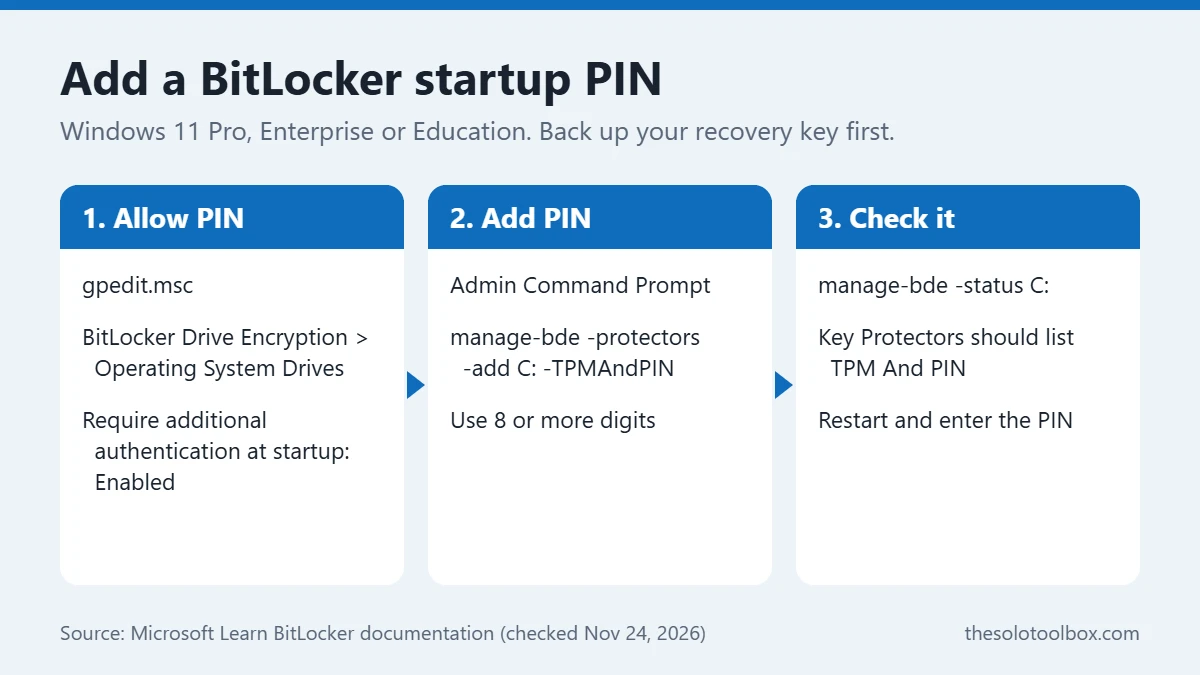
To add a BitLocker startup PIN in Windows 11, first turn on the Group Policy setting Require additional authentication at startup and allow a startup PIN with TPM, then open Command Prompt as administrator and run manage-bde -protectors -add C: -TPMAndPIN. Windows asks you to type the PIN twice, and from the next restart you have to enter it before Windows loads. It needs Windows 11 Pro, Enterprise or Education.
Two pieces of research published in the past week make this worth doing on laptops that hold client or business data. This guide explains why, walks through the steps, shows how to confirm the PIN is active, and covers the trade-offs.
Before you start
- Applies to: Windows 11 Pro, Enterprise and Education with BitLocker turned on for the system drive. Windows 11 Home has device encryption, which doesn’t offer these settings.
- You’ll need: an administrator account, your BitLocker recovery key saved somewhere other than the PC, and about ten minutes.
- How we checked this: on November 24, 2026 we followed Microsoft Learn’s BitLocker policy settings, countermeasures and manage-bde reference pages, and read The Hacker News reports on the FastUnlock lock-screen bypass (November 20) and the TU Berlin TPM lockout research (November 18). We did not reproduce either attack.
Why a startup PIN matters right now
Most PCs with BitLocker use TPM-only mode. The TPM security chip unlocks the drive by itself when the PC starts, so by the time you see the sign-in screen your files are already readable by Windows. Microsoft’s own documentation calls this option “more convenient for sign-in but less secure” than modes that add a PIN or USB key.
That gap is what a new technique called FastUnlock relies on. Disclosed on November 19 and confirmed by security firm ThreatLocker, it lets someone holding a locked Windows PC use the Narrator screen reader and the lock screen’s Microsoft account recovery options to run programs in a limited, non-administrator account. Microsoft hadn’t released a fix when we checked. On a PC that is switched off or hibernating, a startup PIN stops the drive unlocking until the PIN is entered, so the lock screen never appears to anyone who doesn’t know it.
Separately, researchers at Technische Universität Berlin showed that on AMD PCs and some Intel PCs, someone who opens the case can reset the TPM’s limit on wrong PIN guesses. In their tests the worst-case time to guess a default six-digit BitLocker PIN fell from 19 years to 20 days. AMD plans firmware fixes between November 2026 and February 2027, and the researchers advise adding at least two digits to BitLocker and Windows Hello PINs. That’s why this guide recommends eight digits or more.
Step 1: Check your edition and back up the recovery key
- Open Settings > System > About and look at Edition under Windows specifications. You need Pro, Enterprise or Education.
- Open Control Panel > System and Security > BitLocker Drive Encryption. The C: drive should say BitLocker on.
- Click Back up your recovery key and save it to your Microsoft account, a file on another drive, or print it. If the PIN is forgotten, this 48-digit key is the only way back in.
On a work PC managed by your company, ask IT first. Policies pushed through Intune or Group Policy can override local settings and may already require a PIN.
Step 2: Allow a startup PIN in Group Policy
- Press Windows + R, type gpedit.msc and press Enter.
- Go to Computer Configuration > Administrative Templates > Windows Components > BitLocker Drive Encryption > Operating System Drives.
- Double-click Require additional authentication at startup and select Enabled.
- Set Configure TPM startup PIN to Allow startup PIN with TPM, or Require startup PIN with TPM if you want Windows to insist on it.
- Leave the startup key options on Allow or Don’t allow. Microsoft notes that only one of the additional authentication options can be set to Require, or a policy error occurs.
- Click OK. Optional: enable Allow enhanced PINs for startup in the same folder if you want letters and symbols in the PIN.
- Open Command Prompt and run
gpupdate /forceto apply the change.
Microsoft warns that not every PC supports enhanced PIN characters before Windows starts and recommends running a system check during BitLocker setup to confirm they work. If you’re unsure, keep the PIN to digits.
Step 3: Add the PIN
Right-click Start, choose Terminal (Admin) or open Command Prompt as administrator, and run:
manage-bde -protectors -add C: -TPMAndPINType the PIN when prompted and confirm it. Without a policy change, the PIN must be 6 to 20 digits; choose 8 or more and avoid dates or repeated digits.
After the Group Policy change, the BitLocker Control Panel page may also show a Change how drive is unlocked at startup option with an Enter a PIN choice, which does the same thing through a wizard.
Step 4: Confirm the PIN is active
In the same administrator window, run:
manage-bde -status C:Under Key Protectors you should see TPM And PIN and Numerical Password (your recovery key). If a plain TPM protector is still listed, the drive can still unlock without the PIN; remove it with manage-bde -protectors -delete C: -type TPM and check again. Then restart the PC. A blue BitLocker screen should ask for the PIN before Windows loads.
Use hibernate instead of sleep
A startup PIN only protects a PC that is off or hibernating. When a laptop sleeps, Windows keeps the drive unlocked, and resuming doesn’t ask for the PIN. Microsoft’s countermeasures guide recommends shutting down or hibernating a device before it leaves your control.
- Open Control Panel > Hardware and Sound > Power Options.
- Click Choose what the power buttons do, then Change settings that are currently unavailable.
- Tick Hibernate under Shutdown settings and click Save changes.
Hibernate then appears in the Start menu’s power options. Use it, or Shut down, whenever the laptop goes into a bag or is left in a car or hotel room.
TPM-only vs TPM and PIN
| TPM only (default) | TPM and PIN | |
|---|---|---|
| What you type at startup | Nothing | The PIN, then your Windows sign-in |
| Drive unlocked at the lock screen | Yes | Yes, but only after the PIN was entered |
| Protection if a switched-off laptop is stolen | Relies on Windows sign-in | Drive stays locked without the PIN |
| Remote restarts and unattended updates | Work normally | Need someone to type the PIN after each restart |
| Risk if you forget it | None | You need the recovery key |
Frequently asked questions
Can I add a BitLocker PIN on Windows 11 Home?
Not with the tools in this guide. Home editions use device encryption and don’t include the Group Policy Editor or the BitLocker settings needed to require a PIN. Upgrading to Windows 11 Pro adds them.
Does a startup PIN stop the FastUnlock bypass?
Only when the PC is off or hibernating, because the drive stays locked until someone enters the PIN. If the PC is already running and sitting at the lock screen, the PIN has already been entered and offers no extra protection. Watch for Microsoft’s fix and install it when it ships.
What if I forget the PIN?
Press Esc at the PIN screen to reach BitLocker recovery and enter your 48-digit recovery key. If you saved it to your Microsoft account, you can see it at aka.ms/myrecoverykey from another device.
How do I change the PIN later?
Open the BitLocker Control Panel page and choose Change PIN, or run manage-bde -changepin C: as administrator.
What to do next
Add the PIN on any laptop that leaves your office, switch your habit from sleep to hibernate, and store the recovery key in two places. While you’re working through Windows security settings, check your firmware with our guide to Secure Boot certificate expiry, and make sure you have a current copy of your files with our guide to backing up a Windows 11 PC for free.
Related guides
Sources
- Microsoft Learn: BitLocker countermeasures
- Microsoft Learn: Configure BitLocker (policy settings)
- Microsoft Learn: manage-bde protectors
- The Hacker News: New unpatched Windows 0-day FastUnlock (November 20, 2026)
- The Hacker News: New attack bypasses TPM lockout to crack Windows Hello and BitLocker PINs (November 18, 2026)
Last checked: November 24, 2026. If something here is out of date, let us know.