Windows 11 8GB RAM Update: How to Get the Speed Boost
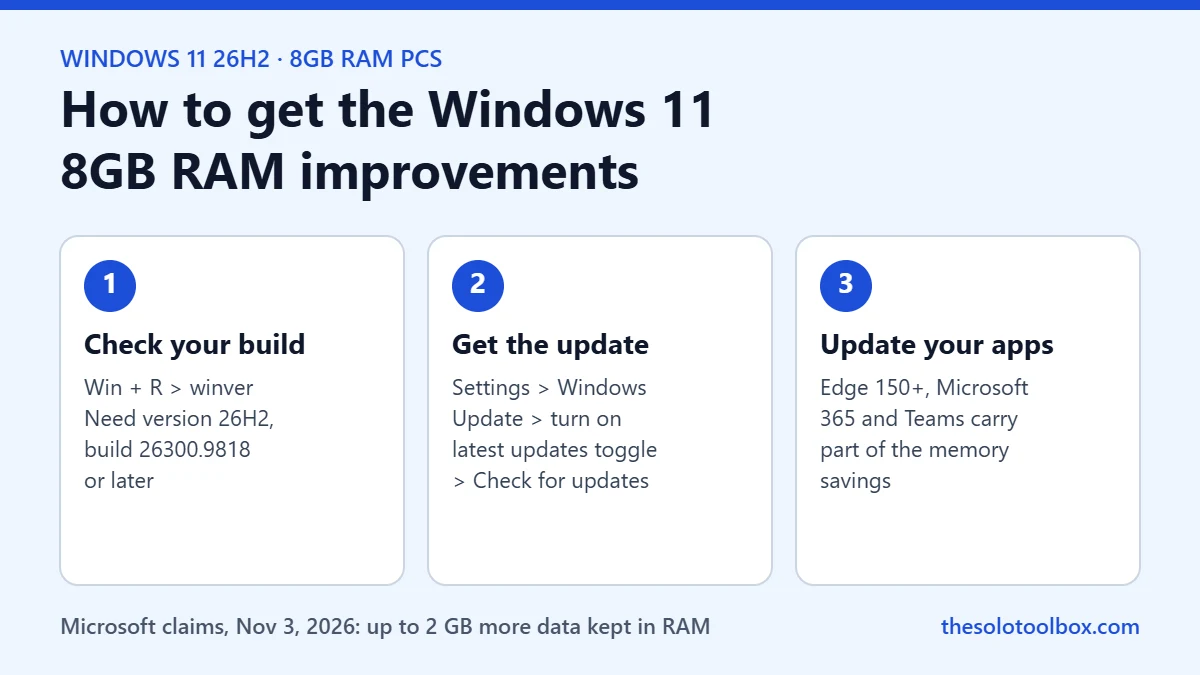
Microsoft’s Windows 11 8GB RAM update arrives with Windows 11, version 26H2, build 26300.9818 or later. To get it, go to Settings > Windows Update, turn on Get the latest updates as soon as they’re available, and select Check for updates. Then update Edge, Microsoft 365 and Teams, because part of the memory savings ships in those apps rather than in Windows.
This guide covers what Microsoft changed for 8GB PCs, which numbers come from lab tests, how to check whether your PC already has the update, and what to do if it is not offered yet.
Before you start
- Who this is for: anyone with a Windows 11 PC that has 8GB of RAM, including many budget laptops sold this year.
- Check your RAM: open Settings > System > About and read Installed RAM.
- Back up first: moving to version 26H2 is a feature update. Back up important files before installing it.
What Microsoft changed for 8GB PCs
Pavan Davuluri, Microsoft’s executive vice president for Windows + Devices, outlined the changes on November 3, 2026. They fall into three groups.
Memory management in Windows
- Smarter compression: Windows retuned how much data it compresses and when it pages to the drive on 8GB PCs. Microsoft says Windows “can now keep up to 2 GB more of your active data in memory,” so apps and tabs you left open are less likely to reload.
- Priority for what you click: Windows briefly favors the action you asked for and holds back background work such as search indexing. Microsoft says Start, Search, right-click menus, Settings, Snipping Tool and File Explorer respond up to 20% faster than with the January 2026 update.
- Faster Edge launches: when Edge is already running in the background, Windows connects to it directly. Microsoft says this opens Edge up to 33% faster, and it requires build 26300.9818 or later plus Edge 150 or later.
Features that load less
- Widgets: on PCs with 8GB of memory or less, Widgets now loads only when you open it. Microsoft estimates this cuts memory commitment by roughly 200 MB while Widgets is closed.
- Edge sleeping tabs: inactive tabs now go to sleep after 15 minutes by default, down from two hours.
- Teams: Teams can turn on Efficiency Mode by default on 8GB PCs, which Microsoft says helps it launch up to 20% faster.
Leaner Microsoft 365 apps
Microsoft says changes across Word, PowerPoint, Excel and Outlook save 360 MB combined. Across Windows, Edge and Microsoft 365, it measured up to 900 MB less committed-memory growth in multitasking tests.
How much faster? Read the footnotes
The headline claims are “up to 20% more responsive” and “multitasking is up to 40% faster.” Both come with limits that Microsoft spells out:
| Claim | How Microsoft measured it |
|---|---|
| Up to 20% faster Start, Search, Settings and similar | Telemetry from 8GB PCs, build 26300.9550 vs. build 26200.7628 |
| Up to 40% faster multitasking | One lab scenario on an HP OmniBook 3 (8GB, Snapdragon X Plus), which Microsoft says “are not a benchmark” |
| Up to 2 GB more data kept in memory | Improvements in build 26300.9550; varies by device |
| Up to 33% faster Edge launch | Build 26300.9818 or later with Edge 150 or later |
Expect smaller gains on older Intel and AMD laptops, and on PCs that run heavy apps such as video editors. Microsoft itself says 3D modeling, advanced video editing and large data jobs still benefit from 16GB or more.
How to check if you already have it
- Press Windows key + R, type
winver, and press Enter. - Look for Version 26H2 and an OS build of 26300.9818 or higher.
- For Edge, open
edge://settings/helpin the address bar and confirm the version starts with 150 or higher.
If you see version 25H2 or a build number starting with 26200, you do not have the update yet.
How to get the 8GB RAM update
- Open Settings > Windows Update.
- Turn on Get the latest updates as soon as they’re available.
- Select Check for updates.
- If you are still on 25H2, look for Windows 11, version 26H2 and select Download & install.
- Restart when prompted, then run
winveragain to confirm the build. - Update Edge from
edge://settings/help, Microsoft 365 apps from File > Account > Update Options > Update Now in any Office app, and Store apps from Microsoft Store > Library > Get updates.
Windows Latest reports that build 26300.9818 arrived with KB5127936, the optional update released October 28, and expects the changes to reach more PCs with the November 10 Patch Tuesday update. Microsoft’s post does not give a KB number or date, and says rollout timing may vary by device and region. HotHardware said it could not get the update offered on four test machines, so a missing offer today is not unusual.
Is it safe to install 26H2 now?
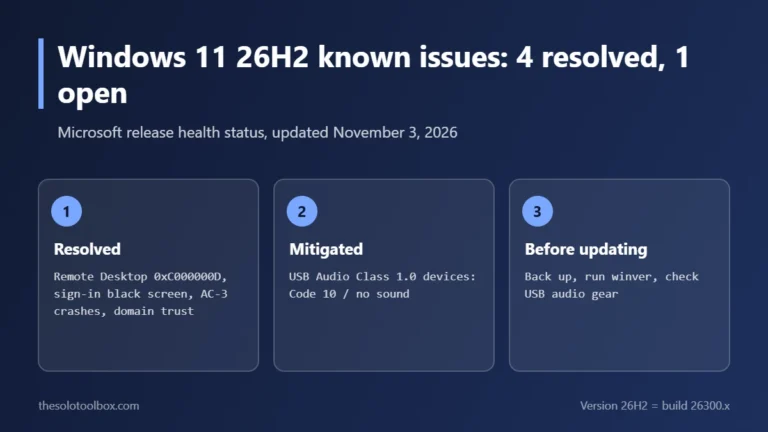
Microsoft’s own 25H2 release health page now recommends moving to 26H2. Four of the five known issues listed for 26H2 are resolved; the remaining USB Audio Class 1.0 problem is marked mitigated. If you rely on older USB audio interfaces or headsets, read our 26H2 known issues guide before updating.
Task Manager still shows high memory use. Is that a problem?
Not by itself. Microsoft’s post compares RAM to a desk: a full desk means the things you use are within reach. Windows fills spare memory with cached data and frees it when an app needs it. The better test is whether apps reopen quickly and the PC stays responsive. If one app keeps growing, check Task Manager > Processes sorted by Memory, as we describe in our WhatsApp RAM usage guide.
FAQ
Does this update apply to PCs with 16GB of RAM?
Microsoft describes the memory work as making better use of memory “in every Windows 11 PC,” but it only published results for 8GB PCs. The Widgets change applies to PCs with 8GB or less, and Teams Efficiency Mode by default targets 8GB PCs.
Is there a KB number for the 8GB improvements?
Microsoft did not list one. Windows Latest ties build 26300.9818 to KB5127936 from October 28, 2026.
Can I get the same gains on Windows 10?
No. The changes are in Windows 11 version 26H2.
Will this make an old laptop feel new?
Probably not. Microsoft’s lab figures come from a 2026 Snapdragon laptop, and its own comparison shows newer processors account for a large share of the difference between 2021 and 2026 8GB PCs.
Related guides
- Windows 11 26H2 Known Issues: Is It Safe to Update Now?
- WhatsApp for Windows Using Too Much RAM? 4 Ways to Cut It
- How to Stop Fake Virus Notifications in Microsoft Edge
Next step: run winver now. If your build is below 26300.9818, turn on the early-updates toggle and check again after November 10.
Sources
How we checked: on November 5, 2026, we read Microsoft’s November 3 Windows Experience Blog post and its footnotes, then compared rollout details with reporting from Windows Latest and HotHardware. Microsoft has not published a KB number or a firm rollout date for these changes, and we did not run our own performance tests.
- Microsoft Windows Experience Blog: Raising the bar for 8 GB Windows 11 PCs (November 3, 2026)
- Windows Latest: Windows 11 now keeps up to 2GB more in memory on 8GB PCs (November 3, 2026)
- Windows Latest: Microsoft has fixed all but one 26H2 known issue (November 4, 2026)
- HotHardware: Windows 11 26H2 cuts RAM usage and boosts performance