How to share an Excel file without letting people edit it
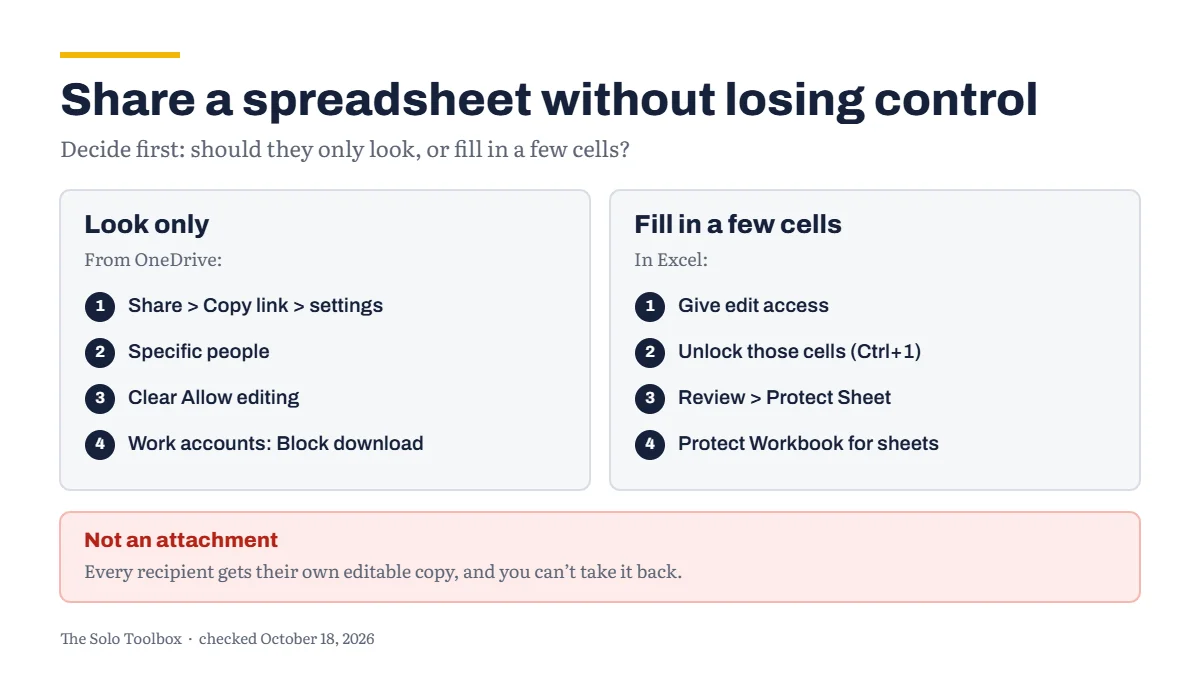
To share an Excel file so people can look but not change it, put it in OneDrive and send a Specific people link with Allow editing turned off. Emailing the workbook as an attachment can’t do this, because each recipient gets their own copy to change as they like. If a client needs to fill in a few cells, give them edit access and protect the sheet so only those cells can change, but Microsoft is clear that sheet protection isn’t a security feature.
Before you start
- You’ll need: the workbook saved in OneDrive, and a Microsoft account or a Microsoft 365 work account.
- Applies to: OneDrive on the web and Excel for Windows. Some link options need a Microsoft 365 subscription or a work account, as noted below.
- Time: about 5 minutes, or 10 if you also protect the sheet.
- How we checked this: based on Microsoft’s own OneDrive and Excel support pages, checked October 18, 2026. Microsoft changes the sharing screens often, so yours may look slightly different.
Why an attachment can’t be view-only
When you attach a workbook to an email, the recipient downloads their own copy. Your original stays as it is, but nothing stops them from editing, forwarding or reusing their copy, and you can’t take it back.
A sharing link works differently. The file stays in your OneDrive, and you decide whether people can edit it, how long the link works and, on some accounts, whether they can download it at all.
Share the workbook as view-only from OneDrive
- Sign in at onedrive.com and find the workbook.
- Select the circle on the file to select it, then select Share at the top of the page.
- Select Copy link, then the settings gear to open the link settings.
- Choose Specific people, so only the people you name can open the link.
- Under Other settings, clear Allow editing. Microsoft turns it on by default.
- Select Apply, then add the person’s email address and send it.
If you share from the OneDrive folder on your PC instead, by right-clicking the file and choosing Share a OneDrive link, Microsoft notes that the link allows editing by default. Change it to view-only on the website using the steps above.
Avoid Anyone links for client files. Anyone who gets the link can open the file, including people it was forwarded to.
Stop downloads, printing and copying
On a OneDrive work or school account, you can go a step further. In the same link settings, clear Allow editing and turn on Block download. Microsoft says recipients can then view the file in their browser but won’t see options to download, print or copy it, and can’t open it in the Excel app.
Microsoft documents this option for work or school accounts, and an administrator can turn it off. If you don’t see it on a personal account, that’s why. No setting stops someone from retyping figures or photographing their screen, so don’t rely on it for anything truly confidential.
Add an expiration date or a password
The link settings also offer Set expiration date and Set password. Microsoft says both need a Microsoft 365 subscription, and for folders they only apply to Anyone links.
An expiry date is useful for a quote or a report that shouldn’t stay open forever. Once it passes, the link stops working and you’d need to send a new one. If you add a password, send it separately, for example by text message rather than in the same email as the link.
When someone needs to fill in a few cells
Sometimes view-only is too strict, for example when a client needs to enter quantities on a quote. In that case, give them edit access and protect the sheet so only the right cells can change.
- Select the cells they should be able to edit, press Ctrl+1, open the Protection tab and clear Locked.
- On the Review tab, select Protect Sheet.
- Tick only the extra actions you want to allow, such as Sort or Use AutoFilter. Anything left unticked stays blocked.
- Optionally add a password, then select OK and save.
To stop people adding, deleting or renaming sheets, use Protect Workbook on the Review tab as well. Both are in the Protect group, alongside Allow Edit Ranges for more detailed control.
Keep two warnings in mind. Microsoft says worksheet protection “isn’t intended as a security feature”: it prevents accidental changes, not determined ones. And if you lose the password, Microsoft can’t recover it, so store it somewhere safe.
Change or remove access later
- On onedrive.com, select the file, then the Information icon at the top right.
- Under Has Access, select Manage access.
- Select the X next to a link and confirm Remove link, or open the link’s options to change its expiry date or password.
Moving the file to another folder in your OneDrive can also break existing links, so check access after you reorganize.
If it doesn’t work
- The recipient can still edit: you probably sent a link with Allow editing still ticked. Remove that link and send a new one with editing turned off.
- There’s no Block download option: Microsoft documents it for work or school accounts, and your administrator may have turned it off.
- There’s no expiration date or password option: these need a Microsoft 365 subscription.
- The client can’t type in cells you meant to leave open: those cells were still locked when you protected the sheet. Unprotect it with Review > Unprotect Sheet, clear Locked on those cells, then protect it again.
- You’ve forgotten the sheet password: Microsoft can’t recover it. Use an unprotected copy if you have one.
If you’re deciding between Microsoft 365 and Google Workspace for your business, our guide to getting a professional email address on your own domain compares the plans. For more setups like this one, browse our how-to guides.
Related guides
Sources
- Microsoft: Share files and folders in Microsoft OneDrive
- Microsoft: Block downloads for view-only files in SharePoint and OneDrive
- Microsoft: Protect a worksheet
- Microsoft: Restrict changes to files in Excel
Last checked: October 18, 2026. Microsoft changes OneDrive’s sharing options regularly. If something here no longer matches what you see, let us know.