How to unsend an email in Gmail, and give yourself longer to do it
The Solo Toolbox · Software Help for One-Person Businesses
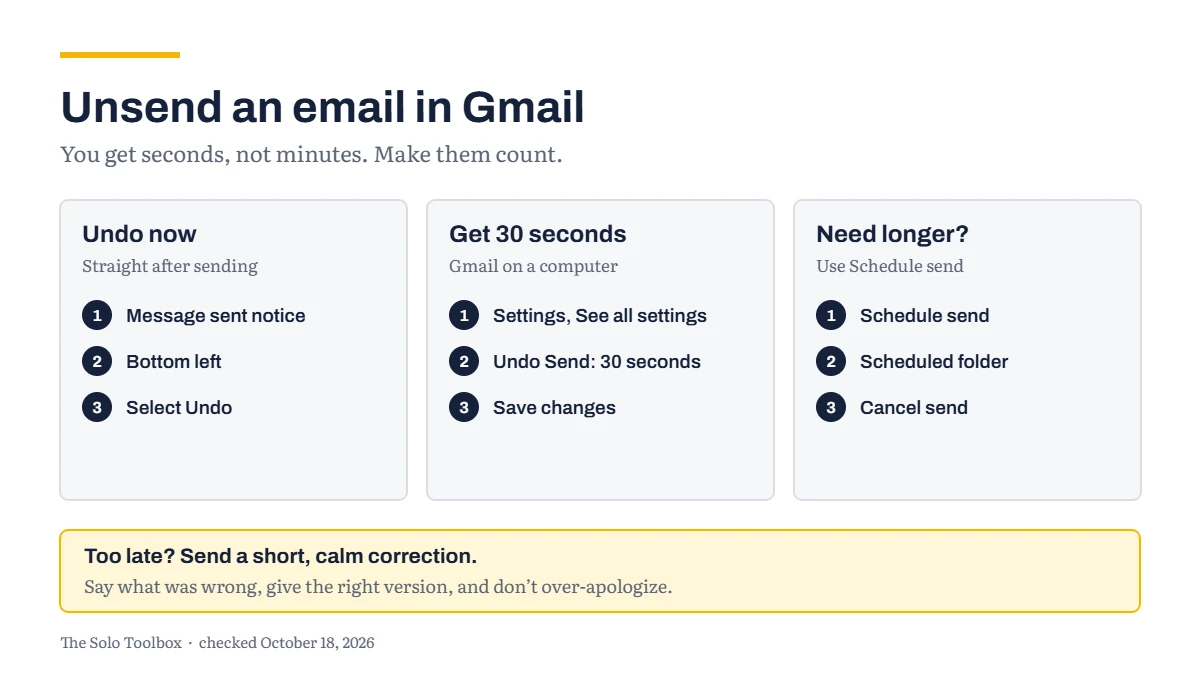
To unsend an email in Gmail, select Undo in the “Message sent” notice at the bottom left of the screen, straight after you send. The catch is how long you get: the window is only seconds long, and once it’s over the email has gone. You can make it longer. Go to Settings > See all settings, find Undo Send, choose a cancellation period of 5, 10, 20 or 30 seconds, and select Save changes. For a client email you want to think twice about, 30 seconds is worth it. For anything more delicate, schedule the email instead of sending it, which gives you as long as you like to change your mind.
Before you start
- You’ll need: Gmail. The settings steps here are for Gmail on a computer.
- Applies to: personal Gmail and Google Workspace accounts.
- Time: a minute to change the setting.
- How we checked this: based on Google’s own Gmail help pages, checked October 18, 2026.
Undo a message you just sent
- Send your email as normal.
- Look at the bottom left of the screen for the Message sent notice.
- Select Undo.
Google says you can retract a message right after you send it, so you can fix it and send it again. The notice also offers View message, if you want to check what went out before deciding.
Once the undo window has passed, the only fix is a follow-up message.
In the Gmail app on Android, iPhone or iPad: right after you send, a “Sent” message appears at the bottom of the screen with an Undo option. Tap Undo before it disappears.
Give yourself longer to undo
- In Gmail on a computer, select Settings at the top right, then See all settings.
- Next to Undo Send, choose a cancellation period: 5, 10, 20 or 30 seconds.
- Scroll to the bottom and select Save changes.
There’s little downside to the longest setting, and it gives you time to spot a wrong recipient or a missing attachment.
Can you recall an email in Gmail?
No. Gmail has no “recall” button, and no way to pull back an email after the undo window, whether that’s a minute or an hour later. Undo Send works by holding your email back for the seconds you choose; once Gmail actually sends it, it’s in the recipient’s inbox.
The “recall” feature people remember is Outlook’s, and it’s narrower than it sounds. Microsoft says message recall only works when you and the recipient both have Microsoft 365 work or school accounts in the same organization, and only if they haven’t opened the email yet. Personal accounts, including Gmail, Hotmail and Outlook.com, can’t use it. So a longer undo period, or Schedule send below, is the real safety net in Gmail.
Use Schedule send as a safety net
Thirty seconds isn’t long enough for second thoughts about a difficult email: a price increase, a complaint, or a reply written while annoyed. Scheduling it gives you more time:
- Write the email.
- Select the down arrow next to Send, then Schedule send, and pick a time later in the day or the next morning.
- If you change your mind, select Scheduled in the left panel, open the email and select Cancel send.
Google says a canceled scheduled email becomes a draft, so nothing is lost. It also says scheduled emails may go out a few minutes after the time you picked, and that Gmail allows up to 100 scheduled emails.
If it’s too late to undo
Once an email has gone, a short, calm correction is better than silence. Keep it brief: say what was wrong, give the right version, and don’t over-apologize. For example:
Hi [Name], a quick correction to my last email: the total should read [amount], not [amount]. The updated invoice is attached. Sorry for the confusion.
If the email went to the wrong person, ask them politely to delete it, and tell the client it was meant for if anything sensitive was in it.
Habits that prevent the wrong email going out
- Add the recipient last. Write and check the email first, then fill in the To field. An email with no recipient can’t be sent by accident.
- Check attachments before you write “attached”. A missing attachment is an easy mistake to make, and an easy one to catch.
- Read the To and Cc fields when replying all. It’s easy to send a client a message meant for a colleague.
These are our suggestions, not Google features, but they cost nothing and work in any email app.
If it doesn’t work
- There was no Undo option: you can only undo within the cancellation period you set. Increase it to 30 seconds for next time.
- You sent from Outlook or Apple Mail using your Gmail address: Google’s undo is a Gmail feature. Google suggests sending from mail.google.com or the Gmail app if messages don’t send as expected.
- The email didn’t send at all: Google suggests checking your Sent and Drafts folders, and your internet connection.
- You need to retract an email that’s already been delivered: you can’t. Send a short correction instead. If the email included something sensitive, our guide to Gmail confidential mode covers a way to send that you can withdraw later.
For another way to use scheduled emails, see our guide to setting up free invoice reminders in Gmail.
Related guides
Sources
- Google: Send or unsend Gmail messages
- Google: Schedule emails to send
- Microsoft: Recall or replace an email message that you sent
Update, November 21, 2026: added the Gmail app steps and whether Gmail can recall an email.
Last checked: October 18, 2026. Google changes Gmail’s features from time to time. If something here no longer matches what you see, let us know.