How to send sensitive files to clients with Gmail confidential mode
The Solo Toolbox · Software Help for One-Person Businesses
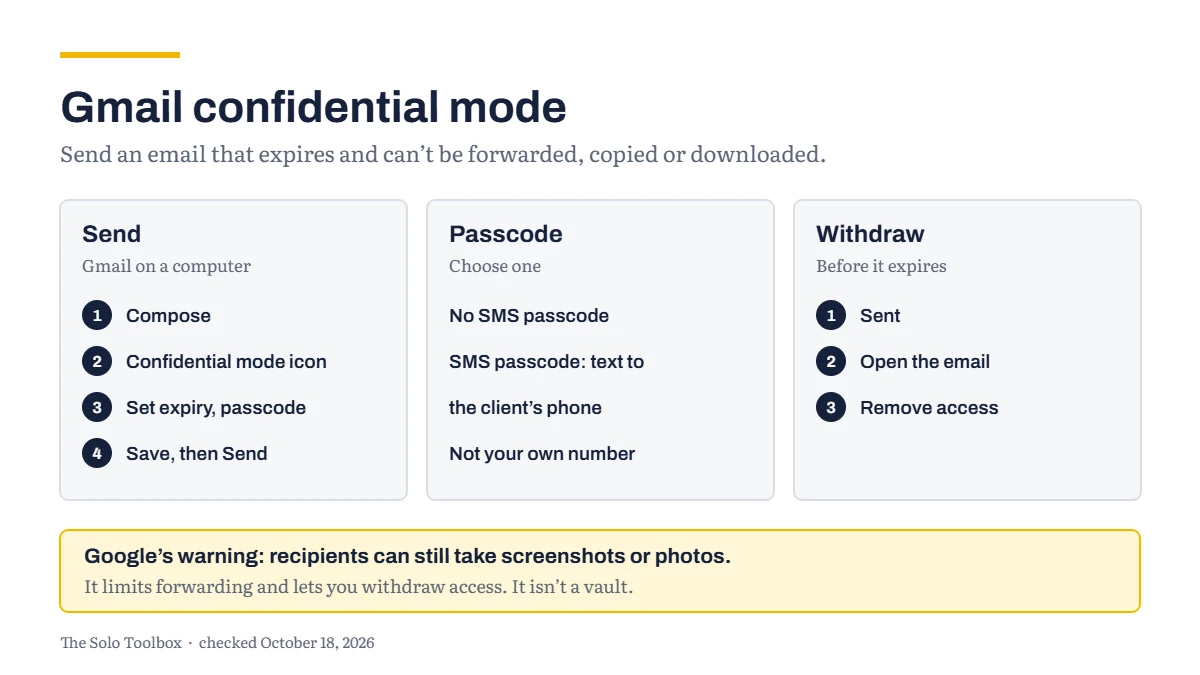
Gmail’s confidential mode lets you send an email that expires, that you can withdraw later, and that the recipient can’t forward, copy, print or download. To use it on a computer, select Compose, then the confidential mode icon at the bottom of the window, set an expiry date, choose whether to require a text-message passcode, and select Save. It’s useful for a contract, an ID scan or account details, but know its limits: Google says recipients can still take screenshots or photos of the email. It controls what happens after you send; it isn’t a guarantee nobody keeps a copy.
Before you start
- You’ll need: Gmail on a computer. If you want recipients to get a passcode by text, you’ll also need their mobile number.
- Applies to: Gmail accounts. Recipients don’t need to use Gmail; Google says non-Gmail recipients get an email with a passcode.
- Time: a minute per email.
- How we checked this: based on Google’s own Gmail and Drive help pages, checked October 18, 2026.
What confidential mode does, and doesn’t
Google says confidential mode lets you:
- set an expiry date, after which the email can’t be opened;
- remove access at any time before then;
- turn off forwarding, copying, printing and downloading for the recipient, including for attachments.
What it doesn’t do, in Google’s own warning: stop recipients taking screenshots or photos of the email. Google also says recipients with malicious programs on their device may still be able to copy or download it. Treat it as a way to limit casual forwarding and to withdraw access later, not as a vault.
Is Gmail confidential mode encrypted?
Not in the way most people mean. Confidential mode controls what the recipient can do with the email: it doesn’t add end-to-end encryption. The message stays on Google’s servers, which is exactly what lets you remove access or let it expire later, so it’s protected the way any Gmail message is, not locked so that only the recipient can read it.
If you need a file that only the recipient can open, put it in a password-protected file and send the password a different way, such as by text message. Some higher-tier Google Workspace business plans also offer client-side encryption for Gmail.
Send a confidential email
- In Gmail on a computer, select Compose.
- At the bottom of the compose window, select the confidential mode icon. If it’s already on, select Edit at the bottom of the email.
- Use the drop-down menu to set an expiry date.
- Choose No SMS passcode or SMS passcode.
- Select Save, then write and send your email as normal.
In the Gmail app on Android, iPhone or iPad: tap Compose, then More options (the three dots) at the top right, then Confidential mode. Turn it on, pick an expiry time and passcode option, and tap Save.
Which passcode option to choose
- No SMS passcode: recipients who use Gmail open the email directly. Google says recipients who don’t use Gmail get an email with a passcode instead.
- SMS passcode: recipients get a passcode by text message to the phone number you enter. Google warns not to enter your own number here. It also says text passcodes work in North America, South America, Europe, Australia and parts of Asia.
For something like an ID scan or bank details, the text passcode adds a second step: someone who gets into the client’s inbox still needs their phone.
Withdraw access after sending
If you sent the wrong file or a client relationship ends:
- Select Sent on the left.
- Open the confidential email.
- Select Remove access.
Google says this works before the expiry date. After that, the recipient can’t open the email anyway.
Got a confidential email you weren’t expecting?
“Open this secure message” is a classic phishing line, so be wary of confidential-mode emails you didn’t expect. A genuine one works like this, according to Google:
- If you use Gmail, it opens inside Gmail like any other email, with forwarding, copying, printing and downloading switched off.
- If you don’t, you select View the email, then Send passcode, and a one-time passcode arrives by text or email.
Neither route asks for your email password. If a “confidential message” page wants your password, payment details or a download, close it. Check that the sender is someone you actually deal with, and if in doubt, contact them another way before opening anything. Our security guides cover what to do if you’ve already entered a password.
When Google Drive is the better choice
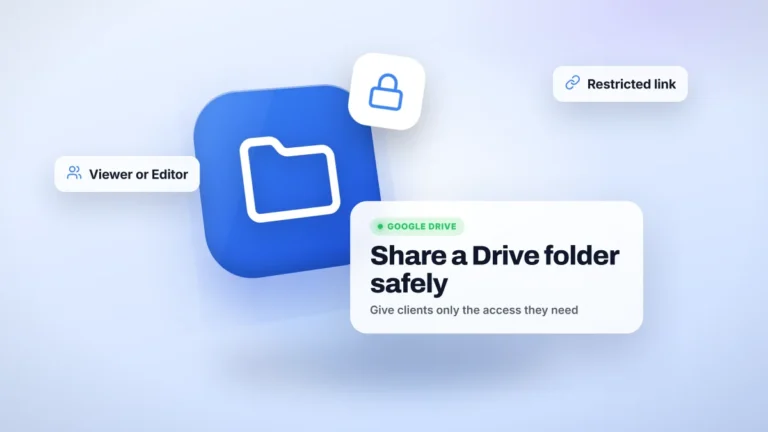
For large files, or files a client needs to keep and work with, a Drive share may suit better:
- Share with specific people and choose Viewer, so they can’t edit.
- Google says owners can stop viewers and commenters from downloading, printing or copying a file, in the sharing settings.
- An access expiry date is available on eligible work or school accounts only, according to Google; personal accounts can’t set one.
Our guide to sharing a Google Drive folder with a client safely walks through the settings.
If it doesn’t work
- There’s no confidential mode button: on a work or school account, the administrator can turn confidential mode off for the whole organization. Ask whoever manages your Google Workspace account.
- The client can’t open it: Google says this happens if the sender deleted the email or removed access, or the expiry date has passed. Send it again with a later expiry date.
- The client never got the passcode text: check the number you entered, and that their country is covered by Google’s SMS list. If not, resend with No SMS passcode.
- You need the client to keep a copy: confidential mode blocks downloads. Use a Drive share instead, or send a normal email.
- You’re worried your own account isn’t secure: confidential mode won’t help if someone else has your password. Our guide to setting up passkeys for Google and Microsoft accounts covers a stronger way to sign in.
For more guides on keeping client data safe, browse our how-to guides.
Related guides
Sources
Last checked: October 18, 2026. Google changes Gmail’s features from time to time. If something here no longer matches what you see, let us know.