How to let clients suggest edits in Google Docs without changing your text

The Solo Toolbox · Software Help for One-Person Businesses
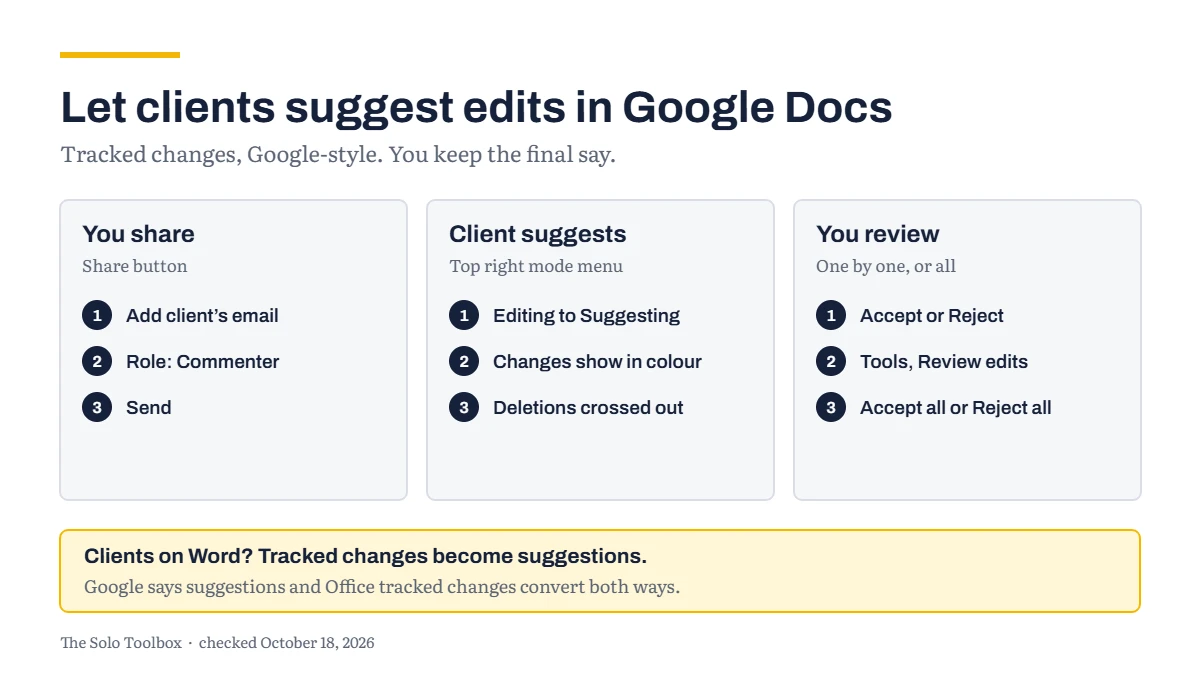
To let a client propose changes to a Google Doc without changing your text, share it with them as a Commenter and ask them to use Suggesting mode. Their edits appear in a different colour, with deletions crossed out, and nothing changes until you accept it. To review, select each suggestion and choose Accept or Reject, or go to Tools > Review suggested edits to accept or reject them all at once. It’s Google Docs’ version of tracked changes, and Google says suggestions become tracked changes if you convert the file to Word.
Before you start
- You’ll need: a Google Doc you own and a computer.
- Applies to: personal Google accounts and Google Workspace.
- Time: a few minutes to share, then however long the review takes.
- How we checked this: based on Google’s own Docs and Drive help pages, checked October 18, 2026.
Why use suggestions with clients
When a client edits a document directly, you can lose track of what they changed, and their edits replace your wording before you’ve seen them. Suggestions keep the original intact. Google says that if the owner approves a suggestion, it replaces the original text; until then, it’s just a proposal.
That makes it a good fit for contracts, proposals, copy for a website, or any document where you want the final say.
Share the document as a Commenter
- Open the Doc, select Share, and enter your client’s email address.
- Set their role to Commenter.
- Select Send.
Google says you need to be able to comment on or edit a document to make suggestions. Giving the client Commenter rather than Editor means they can suggest changes and leave comments, but can’t edit your text directly. According to Google’s sharing help, an Editor can also edit and share the file, which is more than a client usually needs.
How your client makes suggestions
Send your client these steps:
- Open the document.
- Select the text to change, then the Suggest edits button in the right margin.
- If you don’t see it, use the mode menu at the top right to switch from Editing to Suggesting.
- Type the change. To explain it, select the suggestion and add a comment.
Google says the document owner gets an email about new suggestions, so you’ll know when there’s something to review.
Review suggestions one at a time
- Select a suggestion in the margin.
- Choose Accept to apply it, or Reject to remove it.
To see every suggestion and comment in one list, select Comments at the top right. Reply to a suggestion if you want to discuss it before deciding.
Accept or reject all at once
When a client’s changes are all fine, or all need undoing:
- Go to Tools > Review suggested edits.
- In the box at the top right, use the down arrow to preview the document with or without the changes.
- Select Accept all or Reject all.
Preview first. Accepting everything in a long document without reading it defeats the point of suggestions.
Working with clients who use Word
If a client prefers Microsoft Word, you don’t need to change your process. Google says that when you convert files, tracked changes in Office become suggestions in Google Docs, and suggestions become tracked changes in Office. Send them a Word copy, and their tracked changes come back as suggestions when you open the file in Docs.
If it doesn’t work
- Your client can only view the document: they need Commenter or Editor access. Google says they can select Request edit access to ask you; change their role in Share.
- Your client’s changes went straight in: they were in Editing mode with Editor access. Switch them to Commenter so they can only suggest.
- You can’t find a suggestion: select Comments at the top right to see them all.
- You share whole folders with clients: our guide to sharing a Google Drive folder with a client safely covers roles at folder level.
For more ways to work with clients in Google’s apps, see our productivity guides.
Related guides
Sources
Last checked: October 18, 2026. Google changes Docs from time to time. If something here no longer matches what you see, let us know.